


Inky is a mobile first, on-chain trading app launched by Kraken that reimagines crypto markets as an intuitive and engaging experience. Rather than traditional order books and complex interfaces, Inky presents real token markets through swipeable cards, one-tap buys, streak tracking, and fast price predictions. Designed to combine simplicity with real market exposure, the app lets users explore trending tokens, execute swift trades and manage a self-custody wallet without the usual on-chain friction such as seed-phrase setup or manual network switching. Read this Inky Review to know more about the platform in detail.
What is Inky?
Inky is a mobile trading app launched by Kraken that lets users explore and trade cryptocurrencies directly on-chain in a fast, simplified, and gamified way. It is designed to make interaction with real crypto markets feel engaging and accessible, reducing the typical friction of on-chain trading while offering actual market exposure.
Key points about Inky:
• It is an on-chain trading application that runs on phone platforms (iOS and Android).
• The user experience is crafted like a game-style market interface where you can swipe, tap or scroll to discover tokens and place trades quickly.
• Trades execute directly on the blockchain in the background, but the interface abstracts away much of the usual complexity such as manual network switching or detailed wallet setup.
• When you sign in, Inky creates a self-custody wallet for you automatically (you retain control of your keys and can export them).
• Users can fund their account through multiple methods, including deposits from a Kraken account, direct crypto deposits, or payment methods like cards or bank transfers.
• The design blends simple discovery with fast execution, making it suitable for both newcomers to crypto and more experienced traders wanting a streamlined mobile experience.
Also, you may read Hyperliquid vs Pacifica vs Reya vs EdgeX vs Orderly
Inky Review: How to get started
Getting started with Inky is fast and straightforward. You can sign in using your email address or quickly connect through your Apple or Google account. The entire process takes just a few taps.
Sign in with Email
- On the Get Started screen, enter your email address and tap Continue.
- Check your inbox for a 6 digit one time passcode (OTP) sent by Inky.
- Enter the OTP in the app and tap Confirm.
- You are now successfully signed in to Inky.
Also, you may read Top 10 Polymarket Alert Bots
Sign in with Apple
- On the Get Started screen, tap the Apple icon.
- When prompted, allow Inky to use your Apple account by tapping Continue.
- Follow the on screen instructions to complete verification.
- Once verified, you will be signed in to Inky.
Sign in with Google
- On the Get Started screen, tap the Google icon.
- Allow Inky to access your Google account by tapping Continue.
- Select the Google account you want to use or add a new one.
- After verification, you will be signed in to Inky.
Also, you may read What are Forex Signals? | Top 5 free Forex Signals Group
Inky Review: Core Features
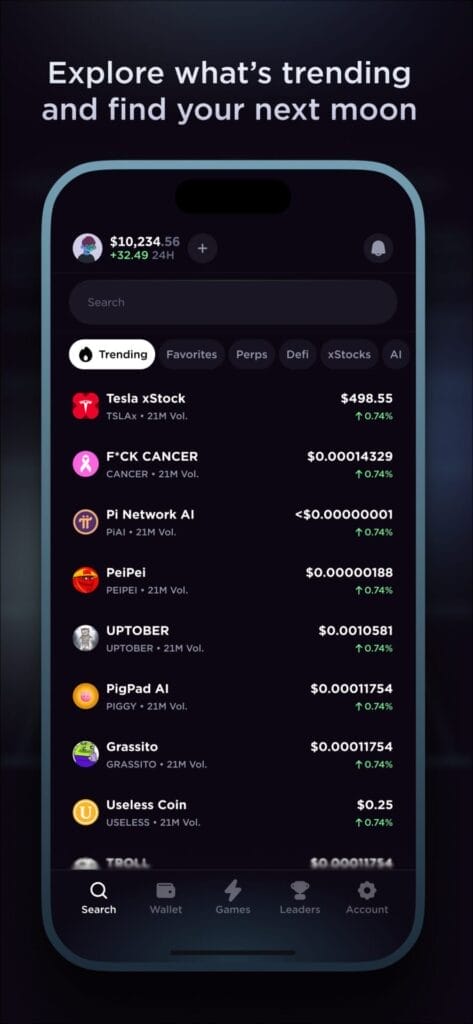
1. On-Chain Trading Interface
Inky lets you trade real crypto assets directly on-chain through a mobile-first interface that feels fast and intuitive rather than complex. Trades execute in the background with minimal frictions, like manual network switching.
2. Swipe and Tap to Trade
The app transforms token discovery and entry into a quick experience:
- Swipe right to buy a token instantly with your selected amount.
- Swipe left to skip a token.
- Tap to view price charts and market data.
Also, you may read TrendX Review: A Comprehensive Guide
3. Discovery-First Design
Inky’s Home and Discover sections surface trending, new, and categorized tokens, helping users find opportunities quickly:
- Trending coins based on activity and momentum.
- New coins recently listed.
- Category view for sector or theme browsing.
Search lets you find any token by name or symbol.
4. Self-Custody Wallets
When you first sign in, Inky creates a self-custody wallet for you, including support for both EVM networks (like Ethereum, Arbitrum, Base) and Solana. You retain full control of your keys and can export them.
5. Fast Funding Options
You can top up your Inky wallet from multiple sources:
- Directly from your Kraken account via Kraken Connect.
- Crypto deposits.
- Card and other payment methods where supported.
6. Leaderboards and Community Insights
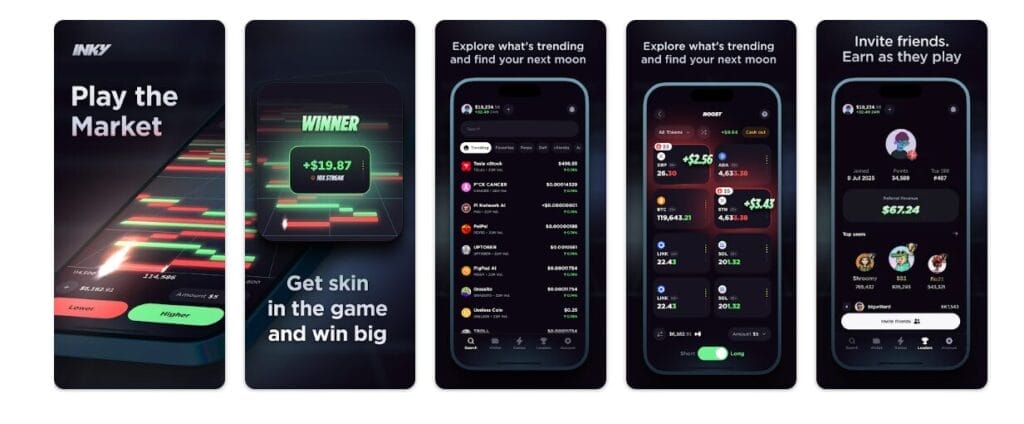
Inky lets you view trading volume leaderboards, both globally and by community, so you can track momentum and participation across different time frames.
7. Gamified Trading Elements
According to app store descriptions, Inky includes gameplay-like features such as streaks, points for trading activity, and even candle prediction challenges that blend social mechanics with real markets.
8. One-Tap Action and Real Market Exposure
The core experience focuses on simplicity: quick buys, one-tap exposures, and interactive gestures that make navigating markets feel more like a game than traditional trading.
Also, you may read Kraken vs Gemini vs BYDFI – Full Comparison
Inky Review: Connecting your Kraken account to Inky
Linking your Kraken account to Inky makes funding your wallet quick and seamless. Using Kraken Connect, you can transfer USDC or USDT directly from your Kraken account into Inky’s Cash balance, ready for immediate trading. The entire setup takes just a minute.
Steps to Connect Kraken to Inky
- Open Inky and tap your profile picture or username in the top left corner.
- From the Account menu, select Kraken Connect.
- Tap Connect your Kraken account. You will be redirected to the Kraken app.
- Approve the connection request to securely link your Kraken account with Inky.
- Once approved, you will be redirected back to Inky and see a confirmation that your Kraken account is connected.
Also, you may read HyperLiquid vs Lighter vs AsterDex vs Hibachi
After Connecting
Once linked, Kraken will appear as a funding option whenever you top up your Inky Cash balance, allowing fast and frictionless transfers without manual wallet steps.
Also, you may read Top 10 Best Trading Podcast
Inky Review: How to Fund your Account
You can fund your Inky account in just a few taps using your Kraken account, direct crypto deposits, or card and bank based payment methods. Inky supports major EVM networks including Ethereum, Ink, Base, Arbitrum, and Optimism, as well as Solana.
Funds added to Inky Cash are held in stablecoins and used for fast trading. The supported cash currencies are USDC and USDT.
Available Funding Methods
- Transfer from your Kraken account
- Direct crypto deposits
- Debit or credit card
- Venmo
- PayPal
- Instant ACH
- Bank transfer
Also, you may read VOOX Review: Crypto Trading Platform
Fund Your Account Using Kraken
Before starting, make sure your Kraken account is connected to Inky.
- Tap Top up in the top right corner of any screen.
- Select Kraken as the funding source.
- Choose the token you want to transfer, such as USDC or USDT.
- Enter the amount and tap Transfer.
- Wait for the Transfer complete confirmation.
- Your cash balance updates as soon as the transfer settles.
Fund Your Account with Crypto
- Tap Top up in the top right corner or tap Deposit from the Portfolio tab.
- If using Top up, select Crypto.
- Choose EVM (Ethereum, Ink, Base, Arbitrum, Optimism) or Solana at the top of the screen.
- Copy your deposit address or scan the QR code.
- From your external wallet or exchange:
- Send USDC or USDT to add funds to Cash, or
- Send other supported crypto to have it appear in your Portfolio.
- Return to Inky and wait for the deposit to confirm on the network.
Also, you may read Hyperliquid vs Rollx vs AsterDEX vs Avantis vs Paradex
Fund Your Account with Card or Other Payment Methods
- Tap Top up in the top right corner.
- Select Card.
- Enter the purchase amount and choose the asset, typically USDC or USDT.
- Select a payment method such as Apple Pay, Google Pay, debit card, credit card, ACH, or bank transfer.
- Complete any required verification and confirm the purchase.
- Funds are credited to your balance once the purchase is completed.
Also, you may read Top 10 Hyperliquid Alternatives for Perp Traders – Check NOW!
Inky Review: How to Buy cryptocurrencies
Buy from the Home Page
- Open the Home page.
- Browse tokens under Trending, New, or Category.
- Tap the token you want to buy.
- On the chart screen, tap Buy.
- Enter the amount of Cash you want to spend. Your available Cash balance is shown at the top left of the order form.
- Tap Buy again to confirm. The trade executes immediately and appears in your Portfolio once completed.
Also, you may read Cypher Card Review: Spend your crypto like Cash
Buy Using Search
- On the Home page, use the search bar at the top to find a specific coin.
- Select the coin from the search results.
- On the coin’s chart page, tap Buy.
- Enter the amount of Cash you want to spend.
- Tap Buy again to confirm. The purchase executes instantly and appears in your Portfolio.
Buy from the Discover Page
- Go to the Discover tab.
- Set the amount of Cash you want to use for each swipe or Buy action.
- Swipe through token cards:
- Swipe right or tap Buy to instantly purchase the displayed coin.
- Swipe left or tap Skip to move to the next coin.
- Tap any card to view the token’s chart and market stats before making a decision.
Swiping right or tapping Buy executes the trade immediately in the background.
Also, you may read Earn 17% yield on Stable coins on Solana
Inky Review: How to Sell cryptocurrencies
- Go to the Portfolio tab.
- Tap the coin you want to sell from your holdings.
- On the chart page, tap Sell.
- Enter the amount you want to sell.
- Tap Sell again to confirm. The transaction is processed and your updated balance appears in your Portfolio once complete.
Also, you may read Ostrich Review: A Comprehensive Guide
Inky Review: How to withdraw
Inky makes it easy to withdraw your funds when you are ready to move them out. You can withdraw either your Cash balance (USDC or USDT, always sent as USDC) or any individual token from your Portfolio. At this time, all withdrawals are supported only on the Solana network.
Withdraw Cash (USDC)
- Go to the Portfolio tab.
- Tap Send Cash.
- Enter the Solana address you want to withdraw to, or scan the QR code.
- Review the withdrawal details and tap Send.
- Your withdrawal is processed on Solana and will appear at the destination once the network confirms the transaction.
Note: Your Cash balance may include both USDC and USDT, but all cash withdrawals are always sent out as USDC.
Also, you may read TOP 6 Play to Earn Crypto Games
Withdraw a Specific Token
- Go to the Portfolio tab.
- Select the token you want to withdraw from your holdings.
- Tap the arrow icon in the top right corner of the token’s chart page.
- Enter the Solana address you want to send the token to, or scan the QR code.
- Review the transaction details and tap Send.
- Wait for the transaction to confirm on the Solana network.
Also, you may read HyperLiquid vs Lighter vs AsterDex vs Hibachi
Conclusion
Inky follows a transparent, execution-based fee model aligned with the broader Kraken ecosystem, rather than publishing a separate standalone fee schedule. Trading costs, spreads, and payment processing fees are clearly shown in the app before you confirm any action, which reduces surprise costs for users. While instant buys, card payments, and conversions may include embedded fees or spreads, there are no account maintenance charges, and blockchain withdrawal costs are generally minimal due to Solana support. Overall, Inky prioritizes simplicity and clarity over complex maker-taker structures, making it well suited for mobile-first, on-chain trading.
Frequently Asked Questions
Are Inky fees the same as Kraken fees?
Inky does not publish a separate fee table. Its pricing model aligns with Kraken’s instant buy and sell structure, rather than Kraken Pro’s maker-taker fees.
Does Inky charge deposit fees?
Crypto deposits are generally free, aside from blockchain network costs. Card payments, ACH, PayPal, Venmo, or bank transfers may include processing fees set by the payment provider, which are shown before confirmation.
Can I see fees before confirming a transaction?
Yes. Inky shows all applicable costs, including fees and spreads, on the confirmation screen before you complete a buy, sell, or withdrawal.